Editing the Path of any Shape in XAML Silverlight
Introduction
In Expressing
Blend we are not only limited to draw some primitives line rectangle, line or
ellipse. Expression Blend help us to create any shape. Expression Blen has two
tools named Pen and Pencil which let us to create path and selection cursor let
us to modify the shape. Let’s create any shape using these tools.
Follow the steps:
Step 1
Create a new
project in Expression Blend and draw a rectangle and fill any color.
Step 2
Using selection
tool select the rectangle and click on Object > Path > Convert to Path.
This option will add four anchor points to rectangle, click on ‘Direct
Selection’ tool to view that anchors.
Step 3
Now select Pen
tool to add three new anchor points in exiting rectangle shape. Notice, you
click to add new anchor when see + sign with pen tool and also notice the –
sign with pen tool to delete exiting anchor point. Press Ctrl+Z for undo.
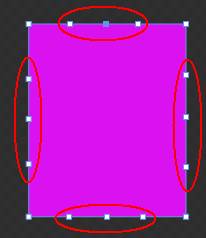
Step 4
After inserting
two new anchor points select the ‘Direct Selection’ tool and modify the shape
by dragging center anchors.

Step 5
Now fill some
Radial Gradient color to shape to create shape as

Step 6
Now select the
‘Direct Selection’ tool and select three anchor points by pressing Ctrl key and
move it downward. Look at the shape

By selecting
multiple anchor points and dragging anchor will change our shape to new shape.
Step 7
Press Alt key and
click on any anchor point to convert segment corsor. Now modify the shape.

Conclusion
This article is
just an outlined way to modify the existing shape into a new shape. In
Expression Blend we are not limited to create any shape. We can create any
shape we wish.


Comments
Post a Comment